

 By
By Introduction
Gaming enthusiasts, welcome to 2024, a year teeming with possibilities for Mac users delving into Steam gaming. The secret to transforming your Mac into a gaming powerhouse lies in selecting the right controller. Discover how using a controller can enhance your gaming experience, making every session more engaging and intuitive.
Why Use a Controller for Gaming on Mac?
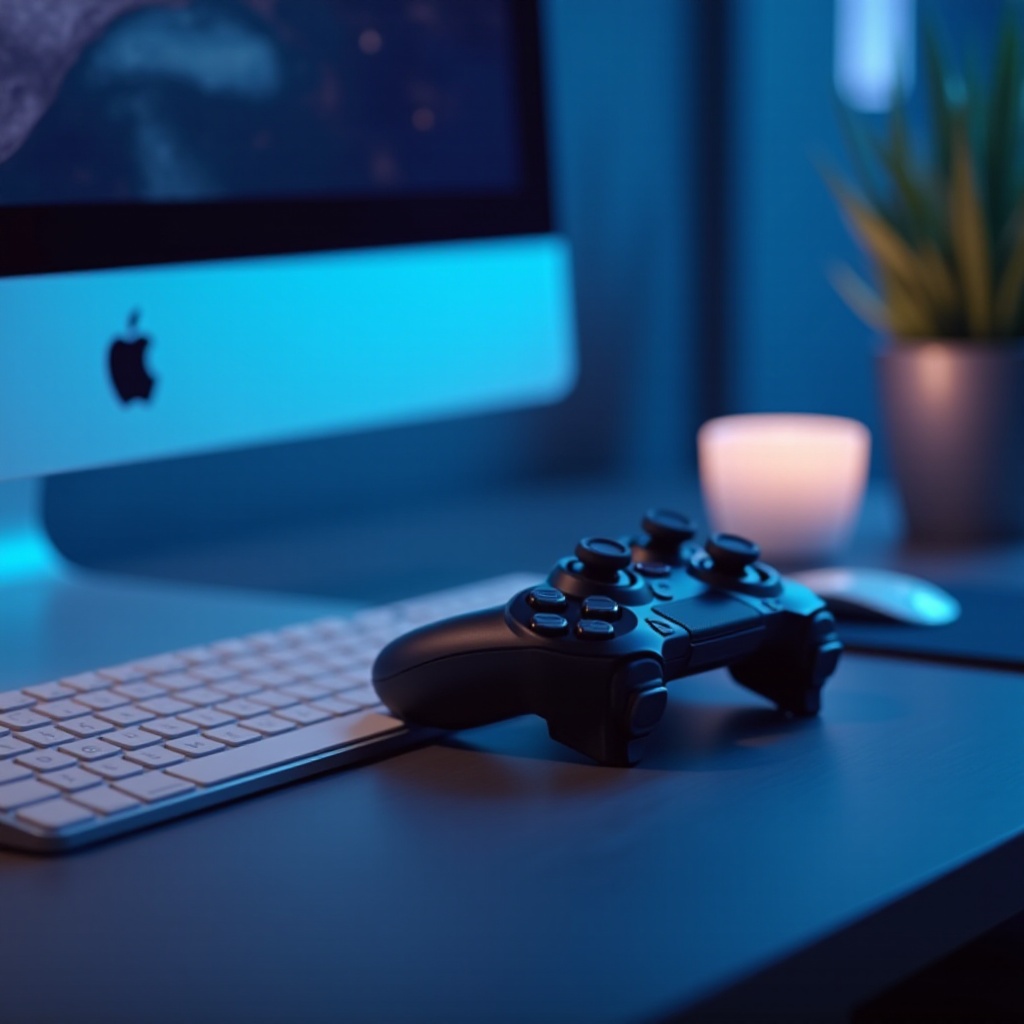
Playing games on a Mac offers unique benefits, and using a controller further enhances this experience. Controllers provide comfort and precise control, facilitating a more immersive gaming environment. They can significantly reduce strain compared to traditional setups, allowing for longer, more enjoyable sessions. The year 2024 brings even more advancements and options, making it crucial to explore the best controllers available today.
Top Controllers for Mac Steam Gaming
Selecting a controller that complements your Mac setup is vital for an optimal gaming experience. Consider these top picks, perfect for 2024’s gaming landscape:
- Xbox Wireless Controller
- A highly recommended option with excellent compatibility and ease of setup.
-
Features an ergonomic design and offers substantial battery life.
-
Sony DualShock 4
- Celebrated for its robust build and responsive touchpad.
-
Seamlessly integrates with Steam on Mac.
-
Nintendo Switch Pro Controller
- Provides exceptional performance with an ergonomic grip and great battery life.
-
Offers smooth Bluetooth connectivity, ideal for Mac users.
-
Logitech F310
- A budget-friendly choice featuring a reliable design and straightforward plug-and-play function.
The right controller can greatly enhance your gaming experience, but it’s equally important to ensure smooth setup and operation with your Mac.
Setting Up Your Controller on Mac
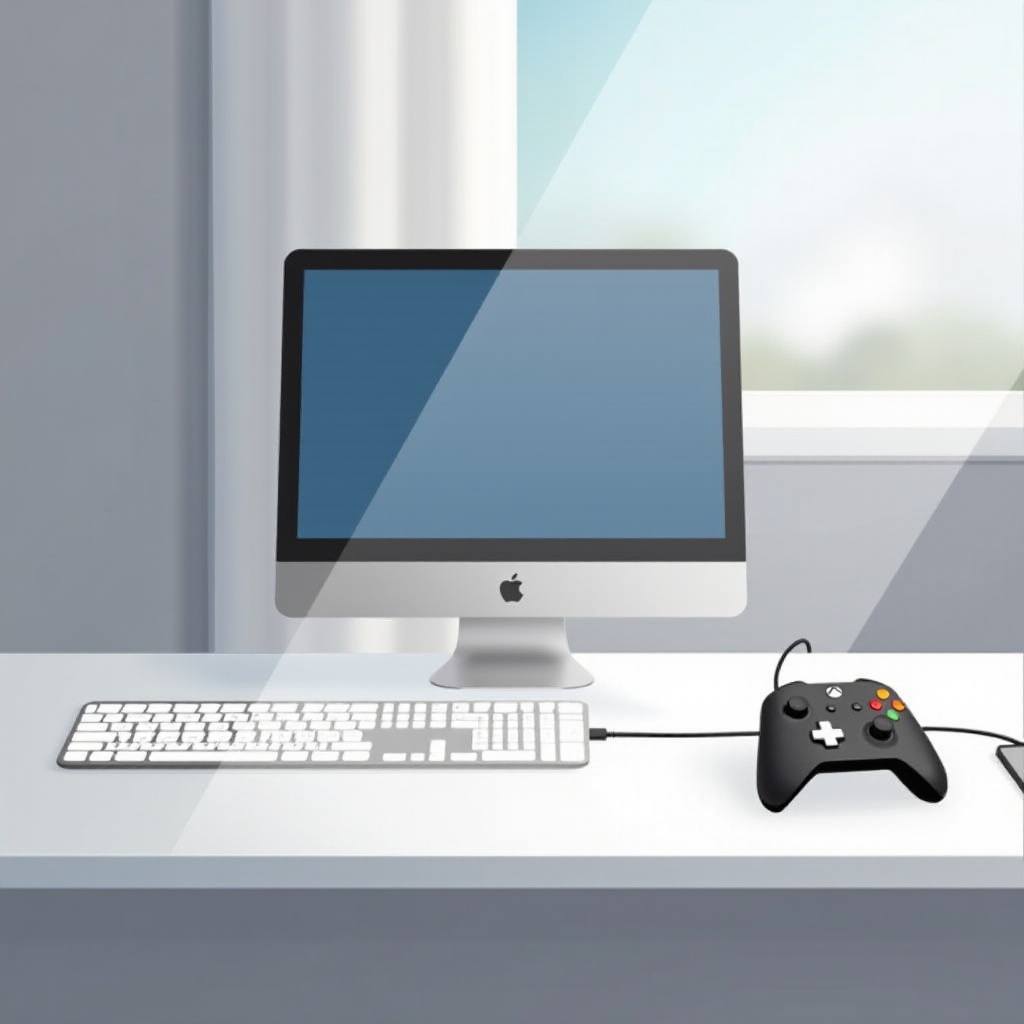
Once you’ve chosen your controller, proper setup is crucial for seamless gameplay. Here’s how to get started:
- Connect Your Controller:
- For wireless models, activate Bluetooth on your Mac and pair the controller by following on-screen instructions.
-
Wired controllers need a compatible USB port or adapter connection.
-
Configure in Steam:
- Access Steam settings and select ‘Controller Setup.
- Choose your controller model and test inputs to confirm functionality.
Having set up your controller, you might encounter issues that need resolution. Let’s tackle some common problems.
Troubleshooting Common Issues
Optimal controller performance is key, but issues may arise. Here’s how to address them:
- Controller Not Detected: Ensure Bluetooth is active, and the controller is in pairing mode. Restarting devices may also help.
- Input Lag: Keep your MacOS and Steam updated to avoid lag caused by outdated software.
- Button Mapping Errors: Use Steam’s Controller Configuration to adjust any inaccurate button mappings.
Once troubleshooting is complete, focus on optimizing the controller’s performance for the best gaming experience possible.
Optimizing Controller Performance
To get the most out of your controller, consider these optimization tips:
- Refine Steam Settings: Employ Steam’s ‘Controller Configuration’ tool to tweak sensitivity and adjust dead zones.
- Software Updates: Regularly update controller firmware and MacOS for enhanced compatibility and new features.
- Custom Layouts: Exploit games’ custom layout options to map controls that suit your playing style, ensuring maximum comfort and precision.
While optimization ensures a great foundation, accessories can further enrich the gaming experience, taking it to the next level.
Accessories to Enhance Your Gaming Experience
To fully immerse yourself in gaming, complement your setup with these accessories:
- Charging Dock: Guarantees your wireless controllers are charged and ready for action at any moment.
- Grip Covers: Improve handling during intense gaming sessions with added comfort.
- Headset: A high-quality headset supports better communication and authentic audio experience.
These additions can help fine-tune your setup, creating an environment that not only meets but exceeds your gaming expectations.
Conclusion
Selecting the ideal controller for Mac Steam gaming embodies a transformative choice that enhances every gaming session. By meticulously choosing, setting up, and optimizing your controller, you unlock unprecedented potential on your Mac. Stay informed with ongoing developments, ensuring your setup remains top-notch.
Frequently Asked Questions
Which controllers are most compatible with Mac in 2024?
Controllers like the Xbox Wireless, Sony DualShock 4, and Nintendo Switch Pro excel in compatibility with Mac systems.
How do I update my controller settings on Steam?
You can adjust and update your settings through Steam’s Controller Configuration tool, offering easy customization.
Can I use older controllers with the latest macOS versions?
Yes, many older controllers remain functional, but updating your MacOS and Steam clients ensures optimal performance.