

 By
By Understanding the specific model number of your HP laptop is essential for managing tasks like securing technical support, downloading precise drivers, and performing hardware upgrades. This article aims to simplify the process of locating your model number, ensuring effective device management.
Introduction
Your HP laptop’s model number is a critical piece of information that can aid tasks ranging from customer service requests to hardware modifications. Our comprehensive guide assists you in easily finding this essential identifier, empowering you to handle your laptop’s needs efficiently.
Why Knowing Your HP Laptop Model Number is Important
Your laptop’s model number serves as an essential identifier for its unique configurations and capabilities. Here are some reasons why it is crucial to know your model number:
-
Customer support is streamlined considerably when you can provide the correct model number, ensuring more efficient service.
-
Different models require specific drivers to optimize performance. Having the right model information helps you download the appropriate software.
-
When considering upgrades or repairs, knowing your model facilitates finding compatible parts, thus avoiding unnecessary purchases.
-
The resale of your laptop is simplified with the precise model number, giving buyers the confidence in knowing exactly what they are purchasing.
By understanding these points, you can appreciate the significance of accessing your HP laptop’s model number.
Methods to Locate the Model Number on HP Laptops
We will now explore multiple methods to help you locate the model number on your HP laptop. This ensures that you can source this information in any situation.
Method 1: Checking the Sticker on the Laptop
Many HP laptops have a sticker located on the bottom which includes the model number. Follow these steps to use this method:
- Turn your laptop off and carefully flip it over.
- Locate the label or sticker attached to the underside.
- Find the model number, which is often labeled as ‘Model,’ ‘Model Number,’ or ‘Product.
This method is straightforward but might not apply if the sticker is damaged or missing.
Method 2: Using HP Support Assistant
HP Support Assistant is a built-in tool designed to help manage your HP devices conveniently:
- Open the HP Support Assistant from your taskbar.
- Select your device from the list that appears.
- Check under ‘Product Details’ to find your model number.
This approach is user-friendly and beneficial for keeping your laptop’s condition optimally monitored.
Method 3: Using System Information on Windows
System Information on Windows provides a repository of details about your laptop:
- Launch the Run dialog by pressing ‘Windows + R.
- Type ‘msinfo32’ and hit Enter.
- In the System Information window, see the ‘System Model’ line for the model number.
This method can be applied easily as long as your laptop is operational.
Method 4: Checking the BIOS
In situations where your operating system is inaccessible, the BIOS can be a reliable source for the model number:
- Restart the laptop and repeatedly press ‘F10’ to enter BIOS setup.
- Browse through the BIOS menu to find ‘System Information.
- There you will find the model number displayed.
Each of these methods ensures accessibility to your model number based on different conditions.
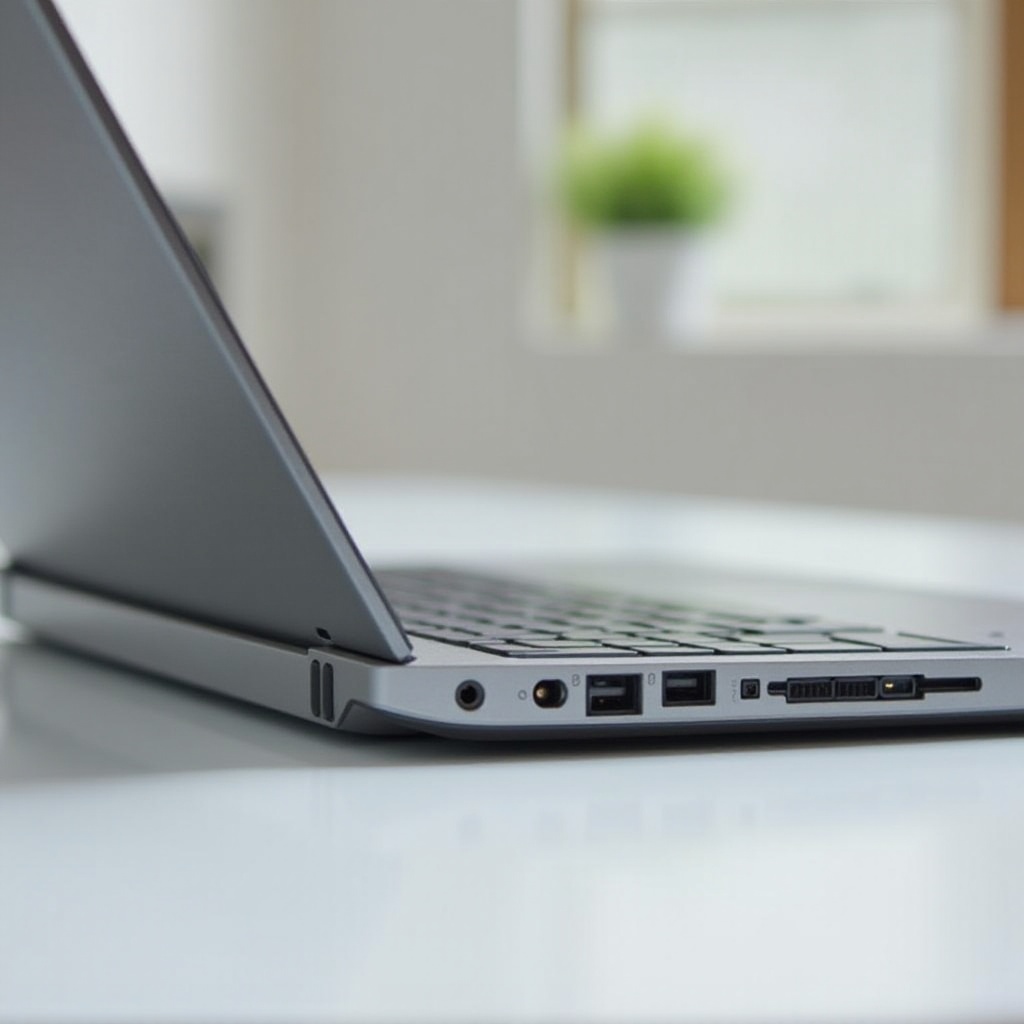
Understanding HP Model Number Formats
Recognizing the format of HP model numbers helps clarify the correct information when you locate it:
- HP models usually feature a combination of letters and numbers, like HP Pavilion 15-cs3019nr.
- The product number often appears in a special format such as ‘12345678#ABA’ or like ‘1V7X67UA.
- Distinguishing the product number from the model number is essential, as each number serves different objectives.
Grasping these numeric and alphanumeric combinations is crucial for using the right identifier as needed.
Troubleshooting: When You Can’t Find Your Model Number
In rare cases when locating the model number is challenging, there are solutions:
-
Contact HP Support for assistance using the serial number if you cannot find the model number.
-
Utilize the online tools available on HP’s website for further identification requirements, which typically require your laptop’s serial number.
Using these troubleshooting techniques ensures you can resolve any difficulties in accessing your model number successfully.
Conclusion
Accessing your HP laptop’s model number is pivotal for conducting seamless operations such as technical support and hardware enhancements. By employing these outlined methods, you’ll confidently maintain and manage your laptop efficiently, without unnecessary obstacles. Ensure you keep this identifier easily accessible to leverage your device’s full potential.
Frequently Asked Questions
How can I find the product number if the sticker is worn out?
If the sticker is worn, utilize the HP Support Assistant, check the BIOS, or contact HP support with your serial number for assistance.
Is the model number the same as the product number?
No, the model number typically identifies the laptop’s configuration, while the product number provides a more granular description, including specific components.
Where can I get support if I can’t find my model number?
You can reach out to HP customer support through their website or call them directly with other identification details, like the serial number, for assistance.