

 By
By Introduction
The sudden appearance of a ‘No Line’ error on your VTech phone can leave you frustrated and disconnected from essential communications. It’s crucial to understand what triggers this issue so that you can efficiently address it. This comprehensive guide will walk you through identifying and resolving the ‘No Line’ error, ensuring that you’ll have the necessary knowledge to reconnect your phone promptly.
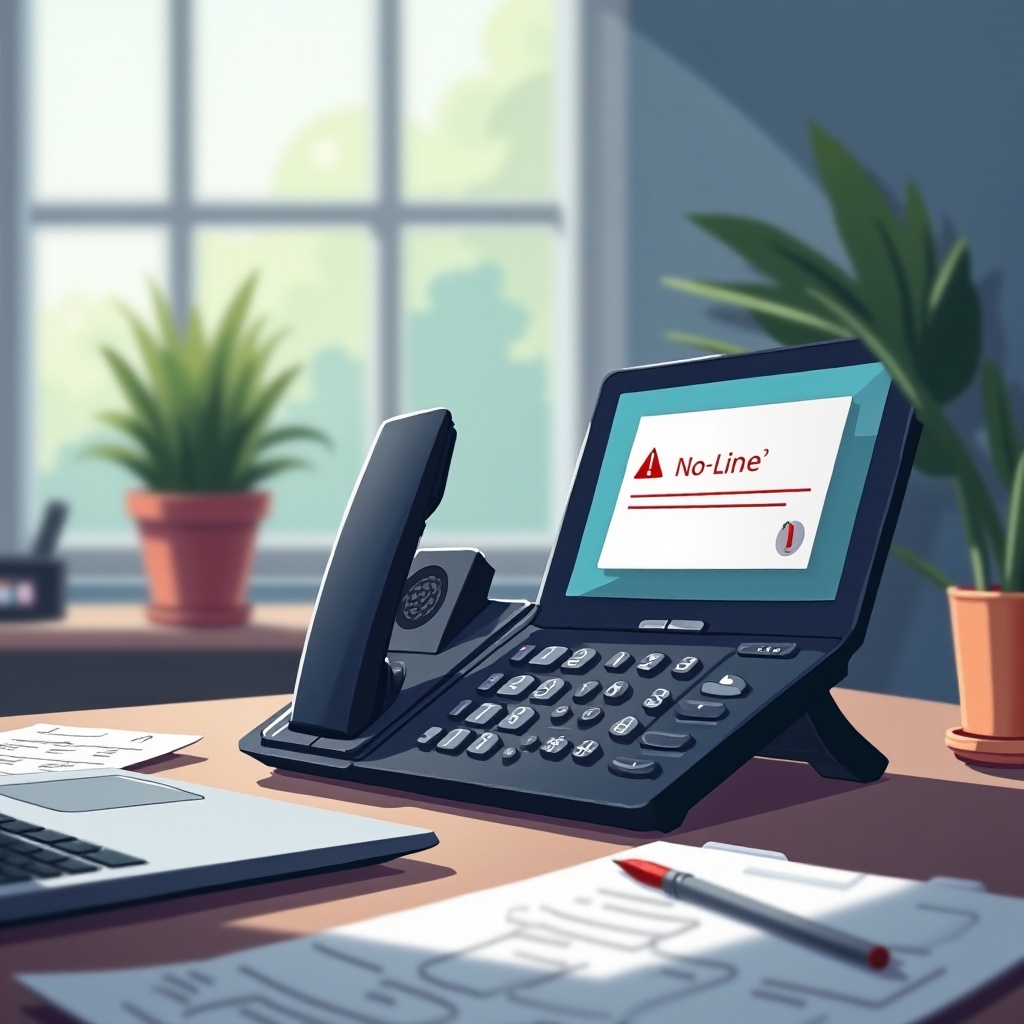
Understanding the ‘No Line’ Error on VTech Phones
The ‘No Line’ error often signals a disruption between your phone and the connected line. This disruption can arise from several factors, including hardware connections and electronic interference.
What Does ‘No Line’ Mean?
The message ‘No Line’ indicates an interruption between the phone handset and the active phone line, halting all incoming and outgoing communication until resolved.
Common Causes of the Error:
1. Physical Disconnection: Often, a loose or unplugged connection can cause the phone to lose line communication.
2. Faulty Cords: Damaged cords are a frequent cause of connectivity issues, preventing the phone from communicating with the line.
3. Settings Misconfiguration: Incorrect phone settings may block the line signal or cause failed connections.
4. Electrical Interference: Nearby devices, including microwaves and routers, can interfere with your phone’s signal.
Understanding these causes helps set the stage for effective troubleshooting. Let’s explore some quick solutions that can often resolve this issue rapidly.
Quick Fixes for the ‘No Line’ Problem
Addressing the ‘No Line’ error doesn’t need to be complicated. Often, simple solutions can triumph over seemingly complex problems.
Verifying Phone Line Connections:
– Ensure that the phone cord is securely fastened to both the handset and the wall jack to rule out disconnections.
– Consider testing with a different phone jack to ensure that the current one isn’t malfunctioning.
Power-Cycling the Device:
Resetting your VTech phone can resolve minor internal issues. Unplug the power supply, wait a minute, and reinstate the connection. This is an easy first step that could solve your problem.
Checking the Handset Settings:
– Check that the volume and other relevant settings aren’t improperly configured, which can affect line connectivity.
– Verify that the handset battery is adequately charged, as a low charge can interfere with reception.
Having applied these fixes, the ‘No Line’ error is often addressed without a need for further intervention. However, more persistent issues may require a deeper look into advanced troubleshooting techniques.
Advanced Troubleshooting Techniques
If quick fixes have not delivered results, you’ll need to adopt more advanced solutions to conquer the ‘No Line’ error.
Inspecting Base Station and Handsets:
– Assess whether electronic devices near the base station may be causing interference, and relocate as needed.
– Re-check the pairing between the handset and base station, and reset if necessary to restore connection integrity.
Resetting the Phone System:
If fundamental configurations are awry, a factory reset may fix the ‘No Line’ error. Consult your phone manual for the precise steps necessary for your model.
Firmware Update Procedures:
– Access the VTech website to discover if new firmware updates are available for your model.
– Follow the steps provided to download and install these updates, which could contain crucial bug fixes.
Applying these solutions requires a bit more technical expertise, yet they are often instrumental in alleviating more persistent ‘No Line’ errors. To solidify the fixes, it’s important to practice preventive maintenance.

Preventive Measures and Maintenance
Consistent routine maintenance and vigilance can help avoid the recurrence of ‘No Line’ issues.
Routine Checks for Optimal Performance:
– Regularly inspect all phone connectors and cords for visible damage.
– Clean dust and debris that might affect connectivity with a dry cloth.
Ensuring Environmental Compatibility:
To minimize electronic interference, keep your VTech phone away from high-interference devices like microwaves and wireless routers. Maintain a stable setup to reduce line problems.
These preventive steps ensure that your phone operates efficiently and reliably. Yet, if these methods do not deliver results, you may need to engage professional help.
When to Seek Professional Help
When regular troubleshooting fails to fix the ‘No Line’ issue, professional help might be necessary. Persistent errors, especially those suggesting hardware damage, often need expert examination. Always be prepared with relevant information when seeking professional assistance to expedite the support process.

Conclusion
Addressing the VTech phone ‘No Line’ error can be a smooth and straightforward process with the correct approach. By understanding the root causes and diligently applying both quick fixes and advanced techniques, you can more effectively resolve this issue. Regular maintenance and proactive care go a long way in preventing future disruptions. For persistent issues, don’t hesitate to reach out to professionals who can offer further guidance.
Frequently Asked Questions
Why does my VTech phone keep losing its line?
Frequent ‘No Line’ errors can often be attributed to environmental interference, faulty connections, or outdated firmware. Regular checks and updates can mitigate these issues.
How can I test my phone line for issues?
Use a different phone to check the line. If the secondary phone also displays issues, contacting your service provider to examine the external line could be necessary.
Is a ‘No Line’ error covered by warranty support?
The resolution depends on the warranty terms. Checking your device’s warranty conditions or contacting customer service can provide clarity on coverage for line issues.