

 By
By Introduction
Having trouble with your Xbox One controller not turning on can disrupt your gaming experience. This detailed guide aims to help you troubleshoot and resolve this issue efficiently. Whether it’s a quick fix or a more advanced solution you need, this guide covers it all to ensure you’re back to enjoying your games in no time.
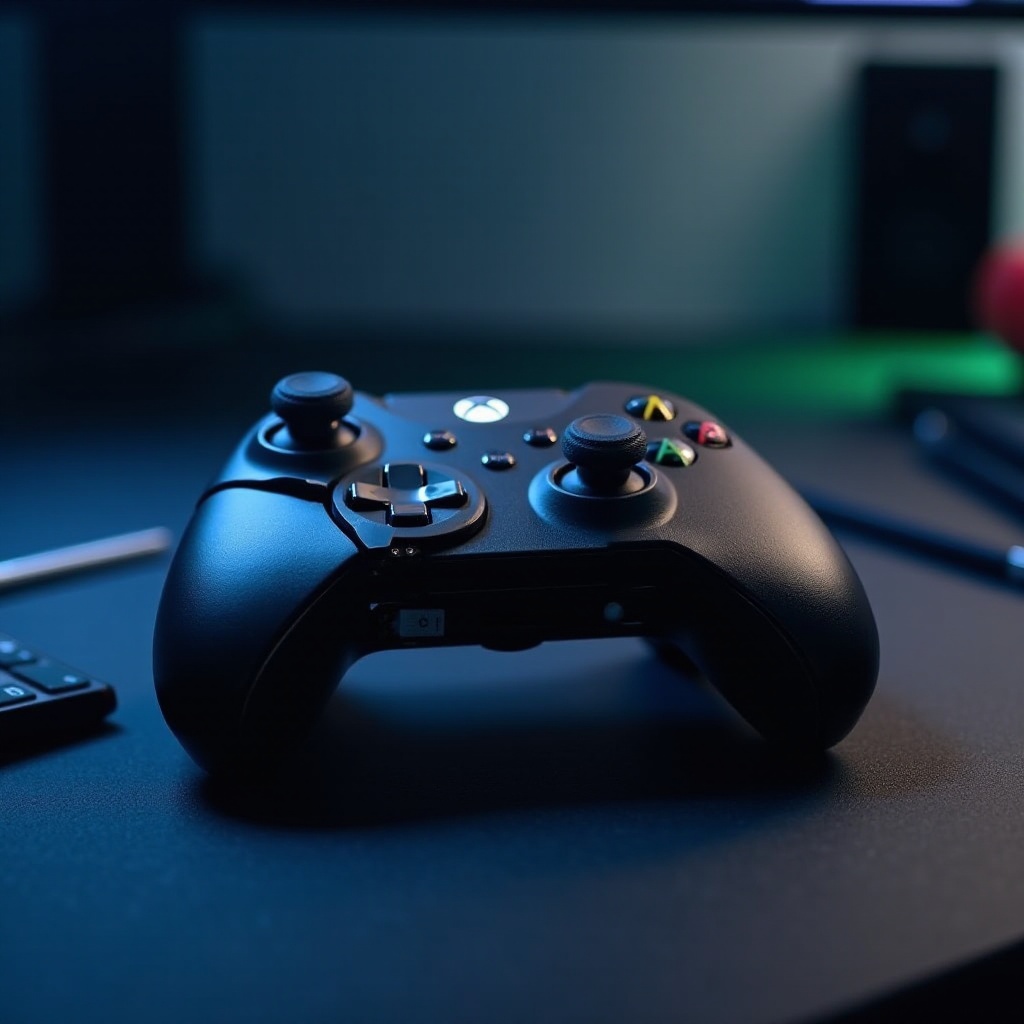
Understanding the Issue
Before diving into solutions, it is important to understand the root of the problem. Knowing the signs and symptoms will help you make an accurate diagnosis.
Common Signs and Symptoms
A non-responsive Xbox One controller could show no response from the power button or fail to sync with your console. You might also notice the absence of sound from the built-in speakers. Identifying these signs promptly can save time and streamline your troubleshooting efforts.
Potential Causes
Several issues could lead to an Xbox One controller failure, ranging from dead batteries and faulty connections to firmware glitches. Pinpointing the correct cause will allow you to address the problem effectively and avoid unnecessary steps during troubleshooting.
Quick Fixes to Try
Starting with simple solutions can often resolve many issues swiftly. Here are a few quick fixes to consider:
-
Check and Replace Batteries: Open the battery cover to ensure they’re inserted correctly. If in doubt, replace with fresh batteries or rechargeable packs for a more sustainable option.
-
Inspect Battery Contacts: Open the battery compartment and look for any corrosion or debris. Clean the contacts gently with a dry cloth, ensuring they can establish a secure connection.
-
Use a Direct USB Connection: Plug the controller into the console with a USB cable. If it powers up, the issue might relate to the battery or wireless connection.
By addressing these common areas, most users manage to get their controllers working again. Should these steps not resolve the issue, it may be time for more advanced troubleshooting.
Advanced Troubleshooting Techniques
If basic solutions prove ineffective, explore these advanced techniques. They address more technical issues which may be causing the problem.
Perform a Controller Reset
Resets can often resolve intermittent issues:
1. Hold the sync, Xbox, and menu buttons simultaneously for 10 seconds.
2. Release them and attempt to power on the controller again.
A reset can recalibrate the internal settings, which might have become misaligned.
Update Controller Firmware
Outdated firmware can cause connectivity issues:
1. Connect the controller to the Xbox via USB.
2. Navigate to ‘Devices & connections’ in the settings menu.
3. Select ‘Accessories’ and check for any available firmware updates.
Updating ensures your controller remains compatible with the latest console updates and fixes known issues.
Re-syncing with the Console
Controllers unused for a period may lose sync:
1. Press the sync button on the console.
2. Simultaneously, press the sync button on the controller.
3. Allow devices to connect, reboot if necessary.
Resyncing often resolves connectivity errors that occur unexpectedly.
Checking for Physical Damage
After software and connection methods fail to solve the issue, it’s crucial to inspect the hardware. Damage can prevent a controller from turning on and might necessitate professional repairs.
Inspect External Damage
Look for visible damage:
– Examine the exterior for signs of cracks or significant wear.
– Ensure all buttons and joysticks are responsive and not jammed.
Consider Internal Circuit Issues
Though less visible, internal damage significantly impacts functionality:
– If comfortable, open the controller to inspect the circuit board.
– Identify any dislodged components or burnt circuitry.
Discovering severe internal issues may direct you to the next section.
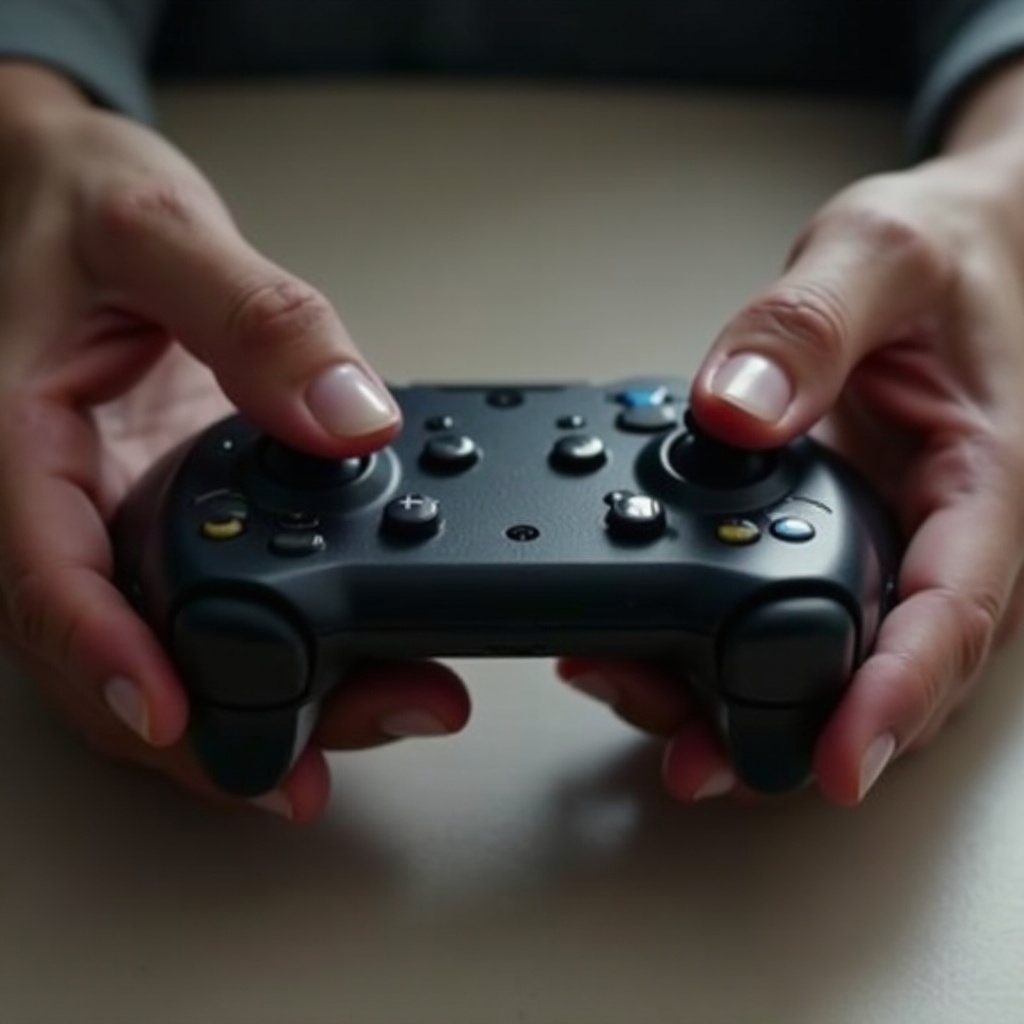
When to Seek Professional Help
Sometimes self-repair isn’t possible. Under these circumstances, professional help is the best option.
Manufacturer Repair Services
Contact Microsoft support:
– Use your warranty for potential repairs.
– Microsoft offers reliable repair services to guarantee quality fixes.
Third-party Repair Options
If warranties have expired or if you prefer local services:
– Locate reputable repair shops with expertise in gaming consoles.
– Ensure they use authentic parts to guarantee compatibility and longevity.
Professional help can prevent exacerbating the issue and provide peace of mind if you doubt DIY solutions.
Preventative Maintenance Tips
Solving this issue means taking steps to prevent future occurrences. Regular maintenance keeps your controller in optimal condition.
Regular Cleaning
Consistent cleaning removes dirt and extends the lifespan of your device:
– Dust your controller frequently to avoid internal buildup.
– Use isopropyl alcohol to clean the buttons without causing damage.
Safe Storage Practices
Storage practices significantly influence your controller’s health:
– Avoid exposing the controller to direct sunlight or damp environments.
– Store it in a padded case for protection against accidental drops.
Implementing good maintenance habits ensures your Xbox One controller remains in excellent working condition.
Conclusion
With the troubleshooting steps outlined, your Xbox One controller should ideally power on. Regular preventative measures will reduce the occurrence of similar issues in the future. If technical problems persist, professional repair services are always available to assist.
Frequently Asked Questions
What should I do if replacing the batteries doesn’t work?
If new batteries don’t work, try resetting the controller, checking for firmware updates, or testing with a direct USB connection.
How often should I update my controller’s firmware?
Check for updates whenever you receive a console system update or if you experience connectivity issues.
Is it worth repairing an old Xbox One controller, or should I buy a new one?
Consider repair if costs are minimal and the controller is in generally good condition. Otherwise, replacing it might offer better value, especially with warranty benefits.