

 By
By Introduction
Printers are indispensable tools, but encountering a ‘printer offline’ issue can disrupt your workflow and cause frustration. Knowing why your printer is offline and how to fix it saves time and prevents future problems. This guide offers steps to identify and resolve common printer offline issues, ensuring you get your device back online seamlessly.
Understanding Printer Offline Issues
What Does ‘Printer Offline’ Mean?
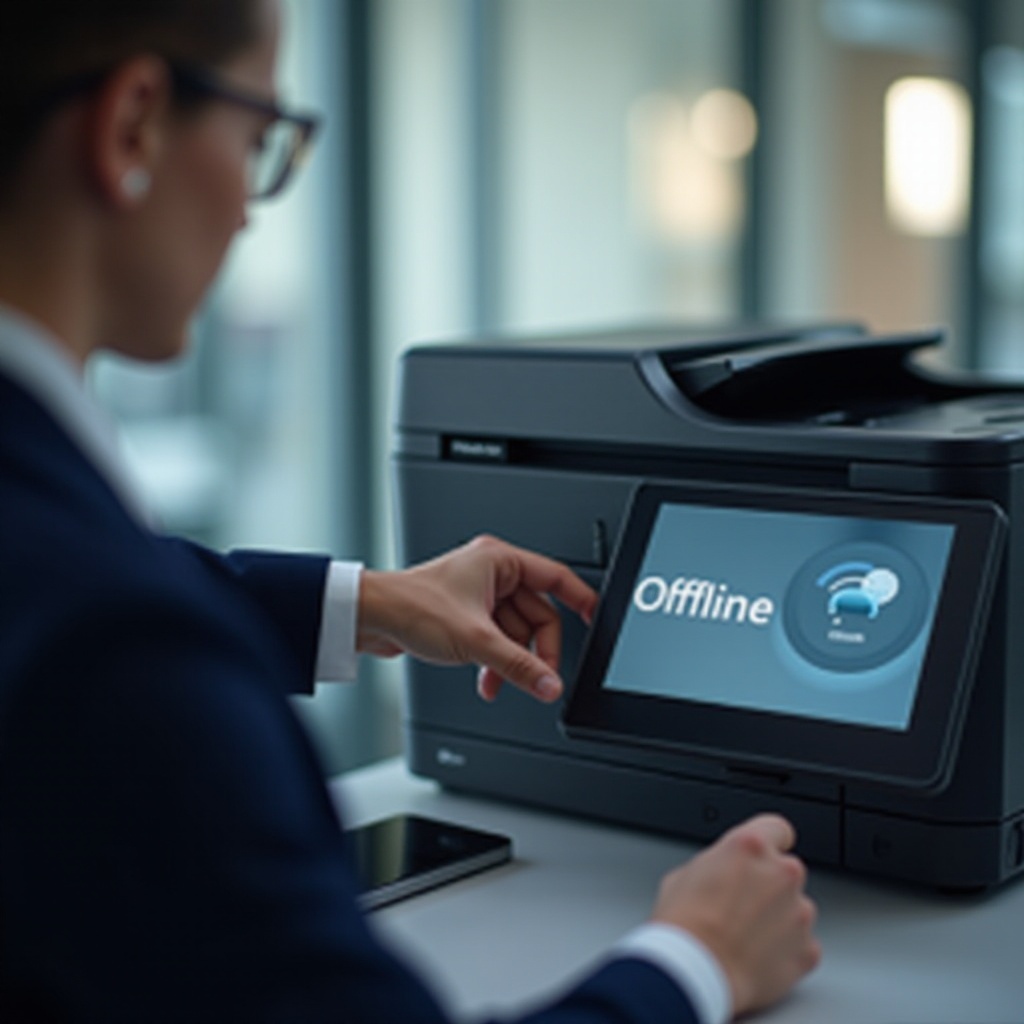
When your printer status displays as ‘offline,’ it means your device is unable to communicate with the computer or network. This status means print jobs aren’t processing. The causes can be diverse, from connectivity problems to configuration errors.
Common Causes of the Printer Offline Error
Several factors may cause your printer to go offline:
- Connection Errors: Loose cables or disrupted wireless connections often trigger this status.
- Software Conflicts: Outdated or corrupted drivers can fail the communication between the printer and computer.
- Network Issues: Changes in network settings or network failures frequently arise as culprits.
Understanding these causes helps in choosing the appropriate solution. Now that we’ve explored why the issue happens, let’s delve into basic troubleshooting steps you can use right away.
Basic Troubleshooting Steps
Checking Physical Connections
- Inspect Cables: Ensure all cables connecting the printer to the power source and the computer are secure.
- Replace Cables: Try swapping out cables that appear damaged or worn.
Restarting Your Printer and Computer
A simple restart often resolves minor glitches:
1. Power Off: Turn off your printer and wait for a minute before turning it back on.
2. Reboot Computer: Restart your computer to refresh the connection.
Setting Your Printer as Default
Sometimes, print jobs might not direct to your intended printer:
- Access Settings: Go to the Control Panel on Windows or System Preferences on macOS.
- Default Printer: Right-click on your preferred printer and select ‘Set as default.
These basic troubleshooting tips should fix many offline issues. If these don’t work, advanced troubleshooting becomes necessary.

Advanced Troubleshooting Techniques
Updating or Reinstalling Printer Drivers
Driver issues often lead to printer malfunctions:
- Update Drivers: Visit the printer manufacturer’s website or use Windows Update.
- Reinstall: Remove the current driver and reinstall the latest one available.
Resolving Network Connectivity Issues
Network reliability is crucial for wireless printers:
- Wi-Fi Signal Test: Ensure your printer is within range of the router.
- IP Address Check: Verify your printer’s IP address matches the network settings.
Adjusting Printer Settings in Windows and macOS
- Printer Queue: Clear pending print jobs that might cause delays.
- Spooler Service: Restart the print spooler service from the Control Panel or System Preferences.
With these advanced techniques, your printer should transition smoothly from offline to online. Let’s explore solutions tailored to specific printer brands that might encounter unique challenges.
Brand-Specific Solutions
Fixing HP Printer Offline Issues
If you use an HP printer, try the following:
- HP Print and Scan Doctor: Use this diagnostic tool to identify and fix issues.
- Firmware Update: Check for and install any firmware updates available.
Solutions for Canon Printers
Canon users can resolve issues by:
- Canon Service Tool: Utilize Canon’s utility software to troubleshoot.
- Cleaning Printer Heads: Perform regular maintenance to prevent hardware-related issues.
Epson Printer Troubleshooting
For Epson printers, consider:
- Epson Connection Checker: Ensure there are no network errors.
- Reset Settings: Restore default printer settings to eliminate errors.
Implementing brand-specific solutions optimizes the troubleshooting process. While addressing current issues, consider preventive measures to avoid future offline situations.
Preventive Measures for Future
Regular Maintenance Tips
- Clean Hardware: Regularly clean the printer and its components.
- Firmware Updates: Schedule routine checks for software updates.
Keeping Software and Drivers Updated
- Automatic Updates: Enable automatic updates for drivers and software.
- Routine Checks: Manually check for updates at least once a month.
Adopting preventive measures enhances your printer’s reliability, keeping it offline-proof. In case issues persist, the next section addresses frequently asked questions about recurring concerns.
Conclusion
Fixing printer offline issues involves understanding the problem, applying basic fixes, and advancing to more complex solutions when necessary. Regular maintenance and updates can prevent future occurrences. If these solutions don’t work, consulting a professional might be your next best step to ensure your printer remains functional.
Frequently Asked Questions
Why does my printer keep going offline?
Your printer may go offline due to connectivity issues, outdated drivers, or network disruptions. Regular checks and updates can prevent this.
How do I bring my printer back online?
Start by checking connections, restarting the device, and ensuring it’s set as the default printer. Advanced solutions involve updating drivers and checking network settings.
Can a virus cause my printer to go offline?
While less common, malware can affect a printer’s software and drivers, potentially leading to offline issues. Ensure good antivirus protection to avoid such scenarios.